where's my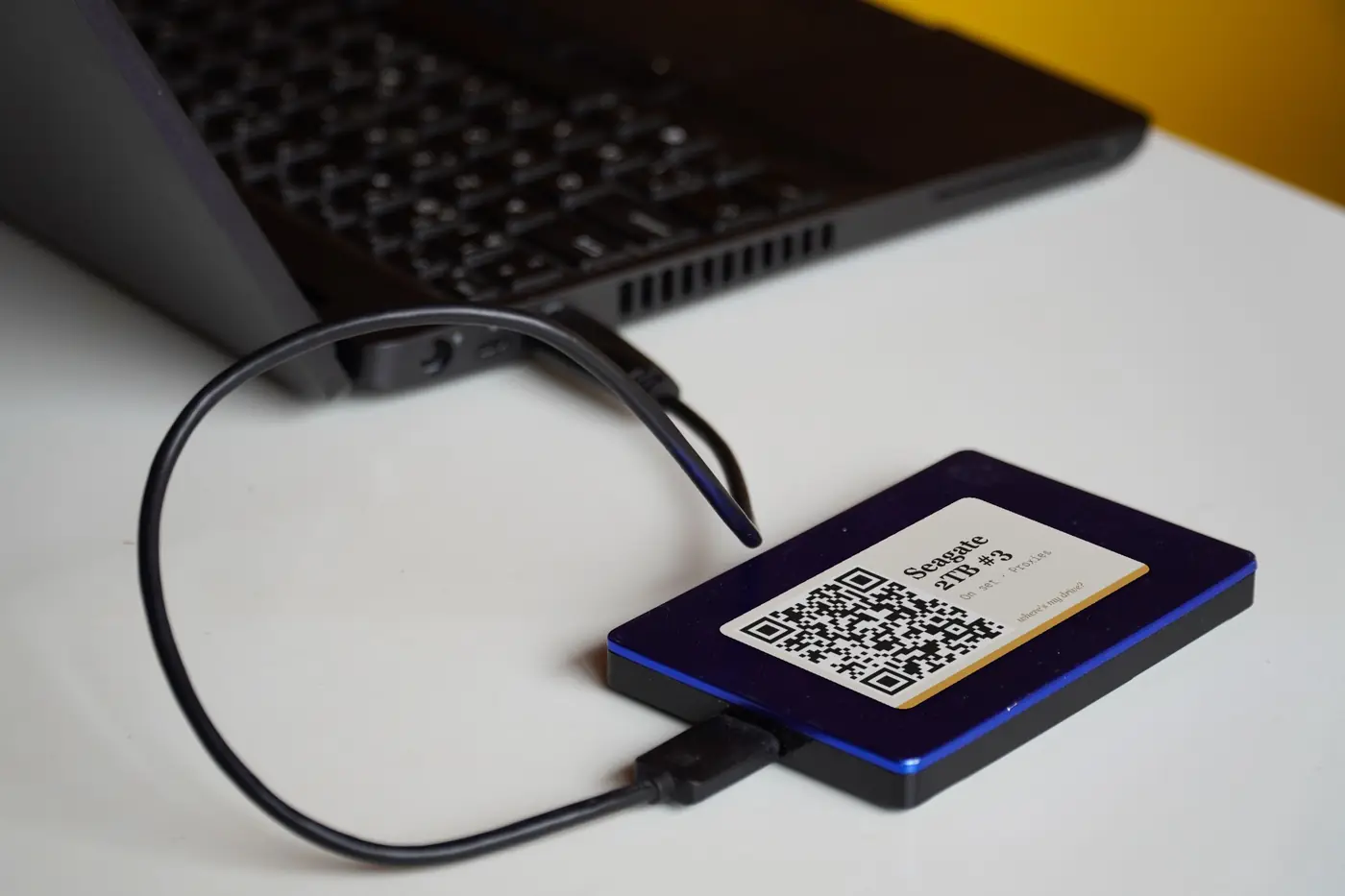
Why a QR code and not just a name
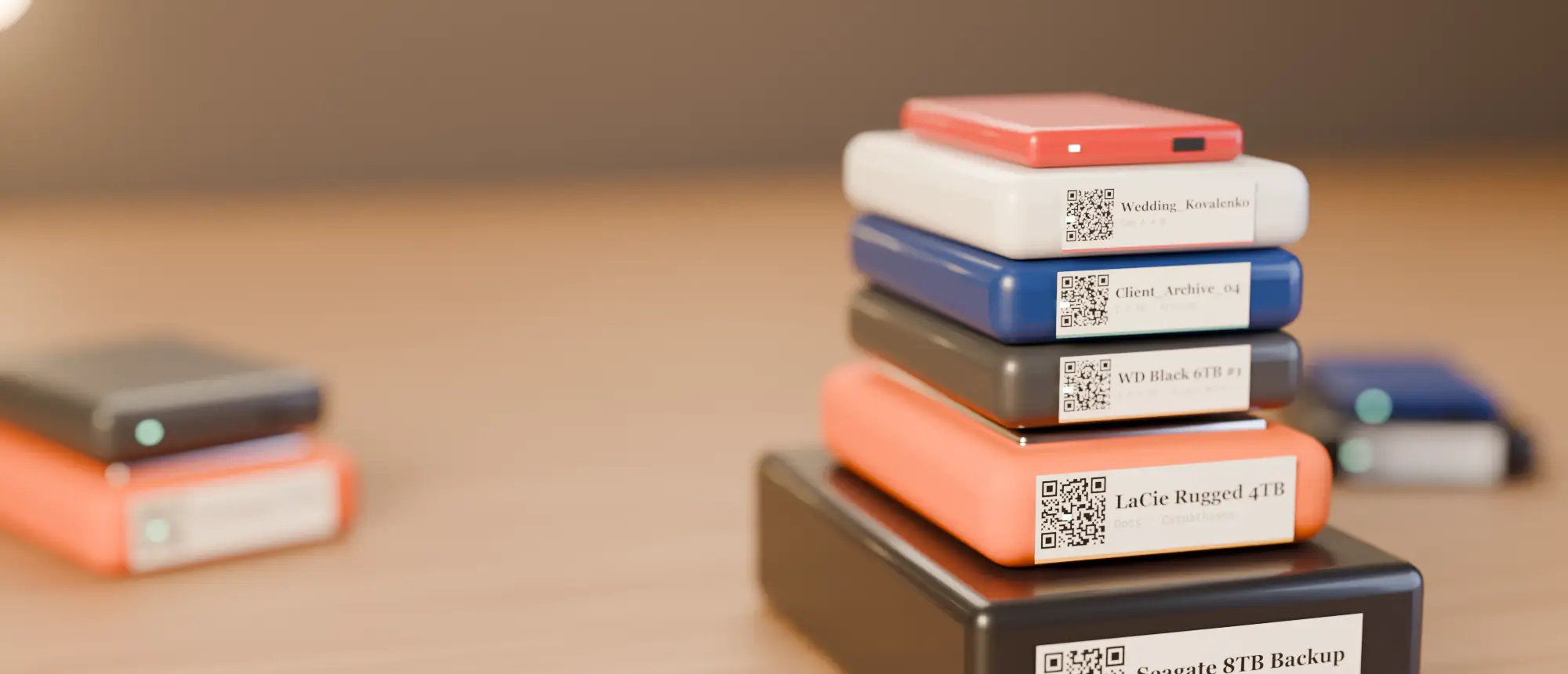
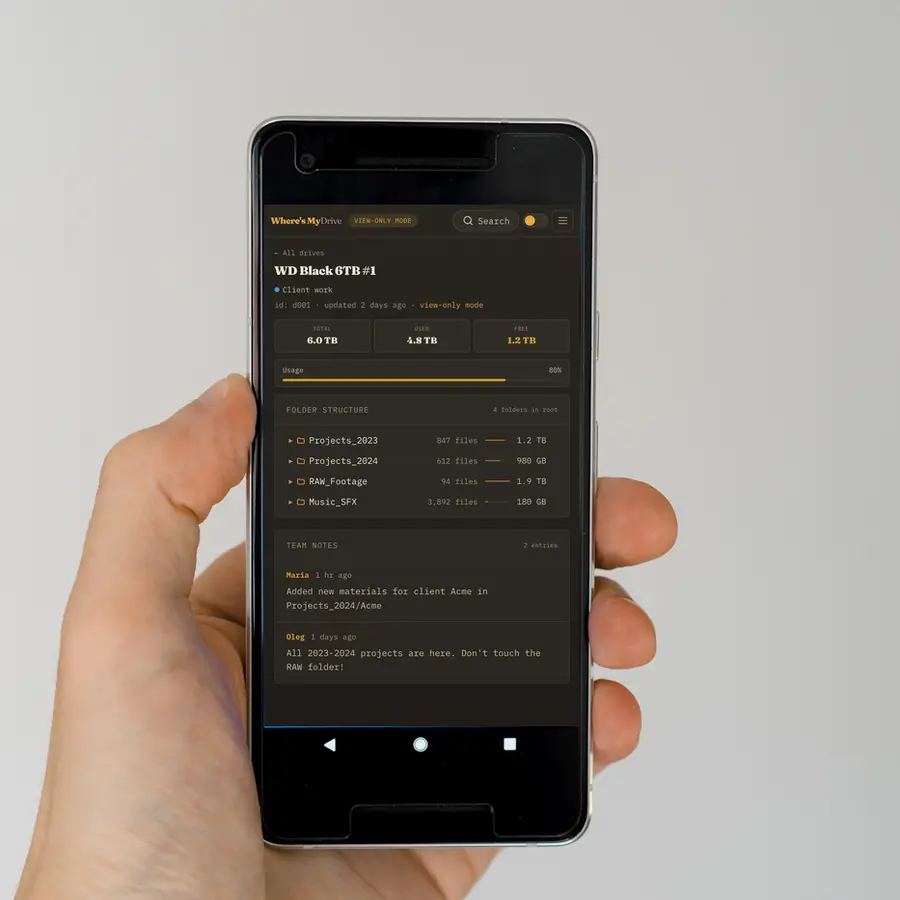
A label has room for maybe fifteen words. A drive holds fifty thousand files. The QR code is the bridge: a tiny, printable pointer from the physical drive to its full, searchable catalog. You point your phone at the sticker and see the folder tree, the last scan date and the notes your team left — whether the drive is on your desk, in a drawer or at the other office.
What the QR should point to
Not to a file on the drive (the drive might be unplugged) and not to a public web page (anyone could read it). It should point to a private catalog entry for that exact drive, behind some kind of access control. In Where’s My Drive each sticker carries a random code that only resolves for your team — scanned by a stranger it shows nothing, not even the drive name.
How big should the code be?
| Label | QR size | Scans from | Good for |
|---|---|---|---|
| 50×30 mm | ~24 mm | 30–40 cm | Portable HDDs (our default) |
| 50×50 mm | ~40 mm | 60 cm+ | Desktop drives, shelves you scan from a distance |
| 40×30 mm | ~22 mm | 25–35 cm | Small SSDs |
| 12×40 mm strip | ~11 mm | 10–15 cm | Drive edges — needs a 300 dpi printer |
Rule of thumb: a phone reads a code comfortably from about ten times its width. Keep a white margin around it and print dark.
Access: who can see what’s on the drive?
The sticker is public by nature — anyone near the shelf can scan it. So the catalog behind it needs a door. Where’s My Drive uses a shared team PIN: freelancers and assistants type it once per phone and get read-only access, with no account. Change the PIN and every phone that had the old one is logged out. Read more about sharing drive contents with a team.
Put a working QR on your first drive
Scan a drive, print its sticker on any printer, and scan it back with your phone — in about four minutes.
Printing the labels
Any office printer and ordinary paper works for the first test. For a shelf of drives a small thermal label printer is faster and the labels are tougher — see our NIIMBOT printer guide, or print a whole shelf on one A4 sheet.
Keep the label and the catalog in sync
The point of a QR label is that it never needs reprinting: the code stays the same while the catalog behind it is updated every time you rescan. Reorganise the drive, rescan, and the next person who scans the sticker sees the new structure.
Frequently asked questions
Can anyone who scans my drive’s QR code see its contents?
Not with Where’s My Drive: the code is a random token and the catalog needs your team PIN or an account. A stranger sees a PIN screen and nothing else.
Do I need a special printer for QR drive labels?
No. An office printer on plain paper works. A thermal label printer is faster and more durable for a whole shelf.
What happens to the QR when I reorganise the drive?
Nothing — rescan the drive and the same sticker shows the new catalog.