 where's my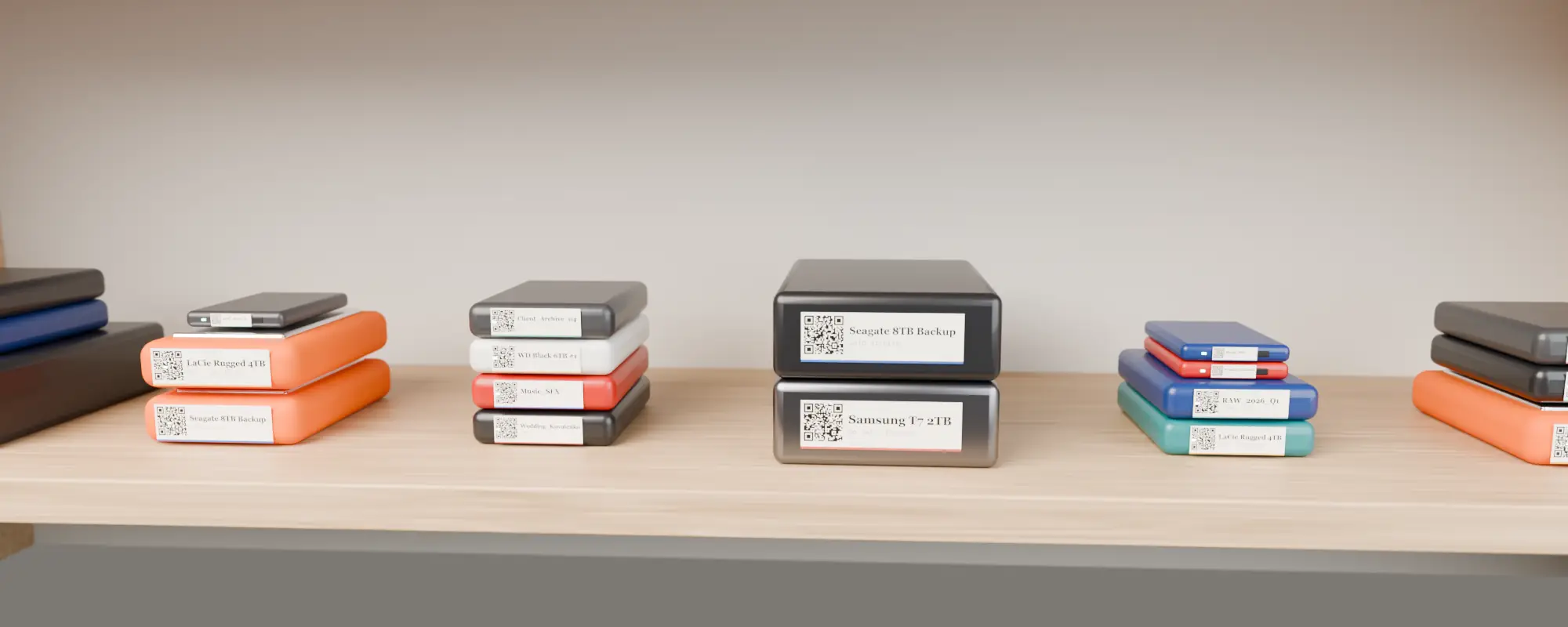
Rule 1 — Label identity, not contents
Write which drive this is, not what is on it. “WD Black 6TB #1” never goes out of date. “Acme campaign + misc” is wrong the moment someone copies another project onto it.
Rule 2 — One unique ID per drive
Use a short, unique name or number that is never reused, even after a drive dies. A running number works (WMD-017), or brand + size + number (T7-2TB-03).
Rule 3 — A QR code that opens the catalog
The QR is what connects the physical drive to the full list of what is on it. Scan it, see the folders, sizes and notes. See QR labels for hard drives.
Rule 4 — Colour means one thing
Pick one dimension for colour and stick to it: per client, per year, or per status (working / archive / to wipe). Where’s My Drive lets you set a colour tag per drive that shows in the app and can match your physical stickers.
| Colour scheme | Good for | Example |
|---|---|---|
| By status | Small teams | Green = working, Orange = archive, Red = to wipe |
| By year | Archives | 2024 = blue, 2025 = teal, 2026 = amber |
| By client | Agencies | Each retainer client gets a colour |
Rule 5 — Put labels where you look
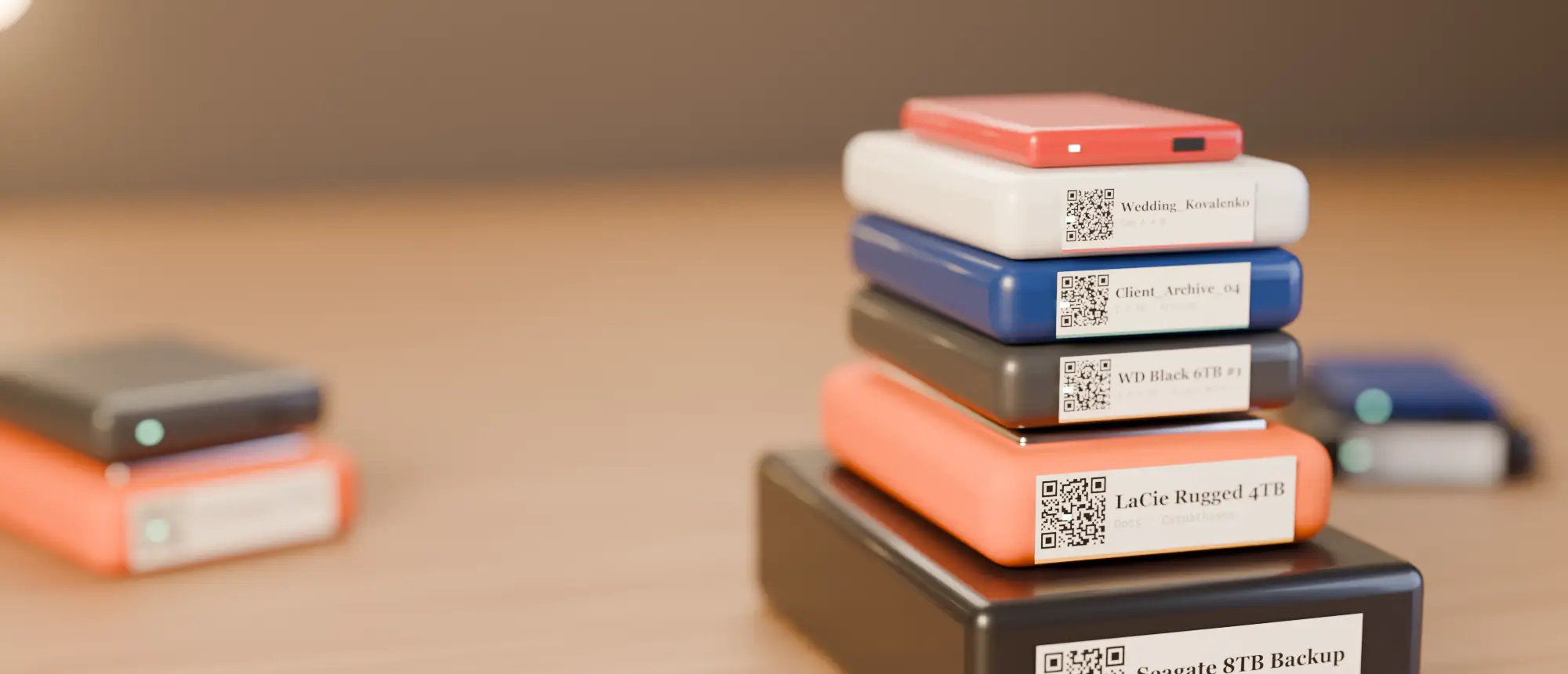
QR on the top face; a name strip on the front edge when drives are stacked or stand like books. Sizes in our label size cheat sheet.
What to keep off the label
- Project lists — they change.
- “FINAL” — nothing is final.
- Passwords — ever.
Catalog your first drive tonight
14-day free trial, no card. Scan a drive in Chrome or Edge, print its QR sticker, and find any file on it from your phone.
Frequently asked questions
What should I write on an external hard drive label?
A unique ID or name for the drive and a QR code to its catalog. Keep the contents in the catalog, not on the label.
How do studios label hard drives?
Most use a unique drive ID, colour coding by client or status, and increasingly a QR code that opens a searchable catalog.