where's my
Heads-up: links to the NIIMBOT store on this page are affiliate links. If you buy through them we may earn a small commission, at no extra cost to you. We only recommend printers we would use for drive labels ourselves.
Why the B21 fits drive labels so well
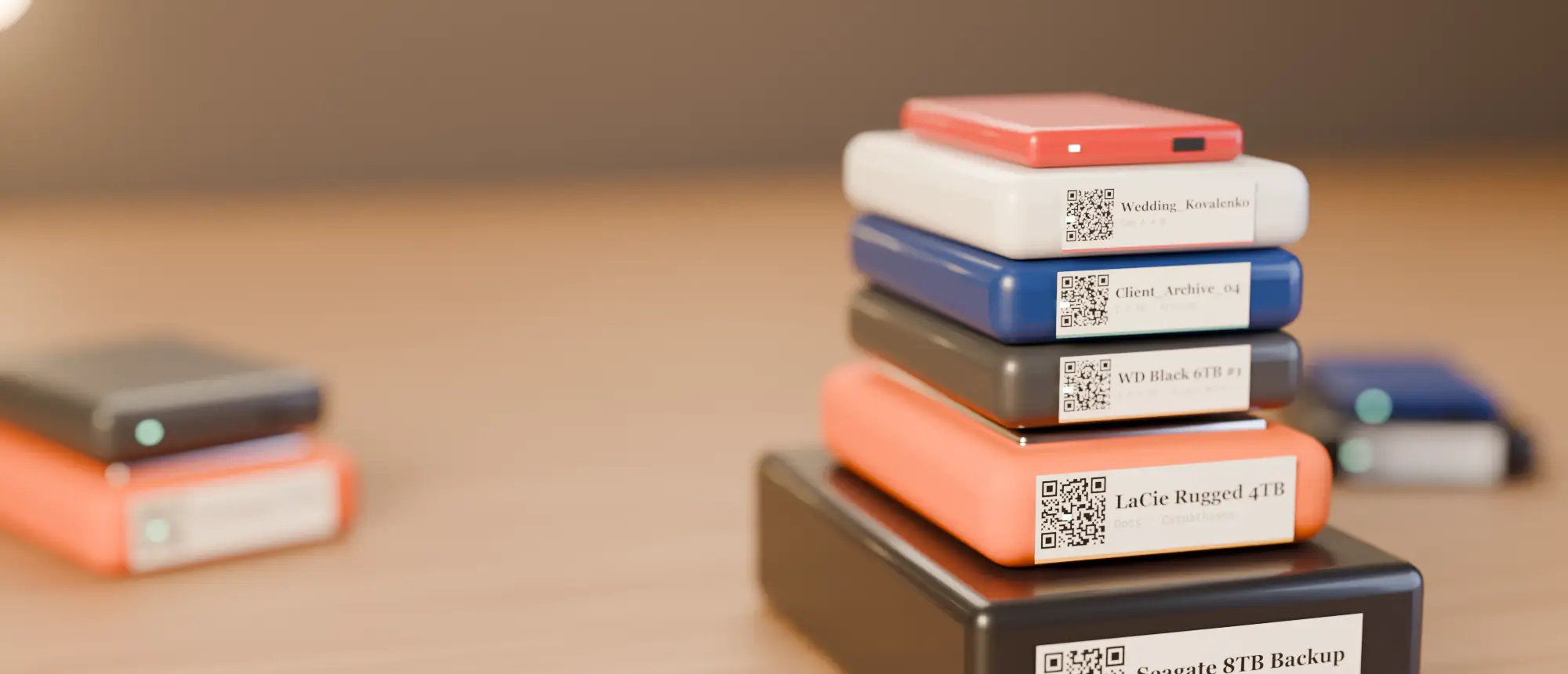
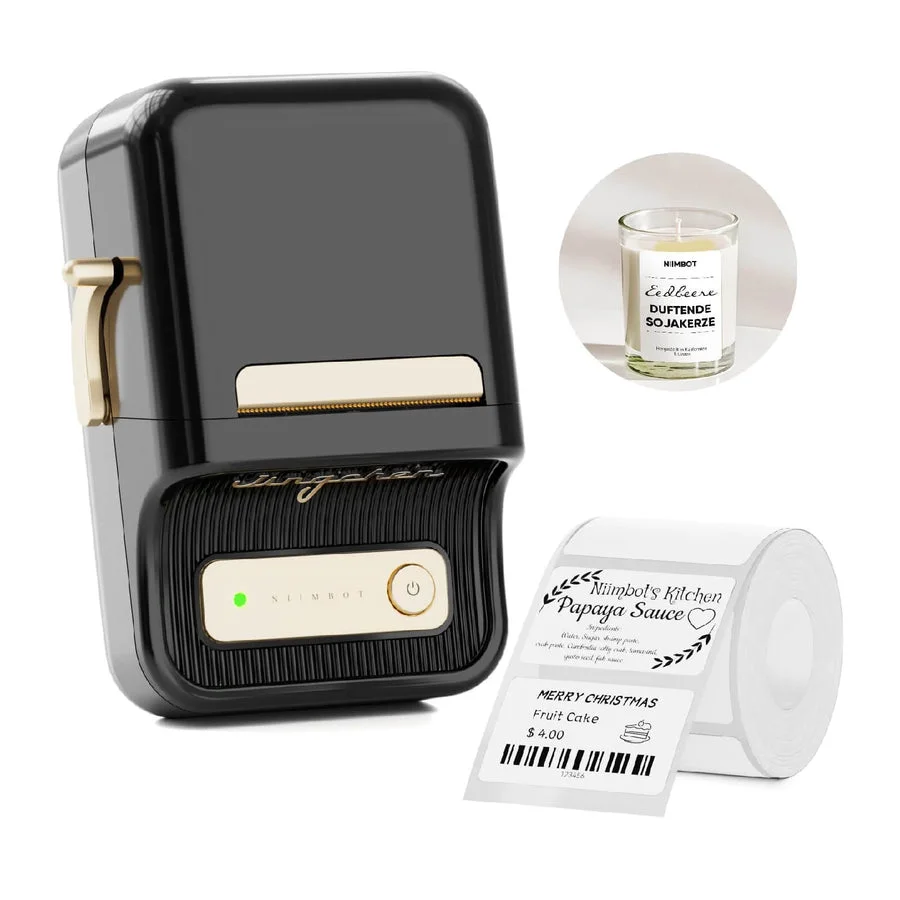
A 2.5-inch portable drive has a top face of roughly 80×110 mm. A 50×30 mm label sits on it with room to spare, is big enough for a QR code a phone reads from arm’s length, and still leaves space for a human-readable name. The NIIMBOT B21 prints 20–50 mm wide labels, recognises the roll automatically and prints from both phone and computer — so the label you design on a laptop is the label you get.
What to buy
- The NIIMBOT B21 itself (or the NIIMBOT B21 Pro if you want 300 dpi for very small codes).
- A 50×30 mm white roll — the default Where’s My Drive “rect” label.
- Optional: 40×30 mm or 50×50 mm rolls for SSDs and square stickers.
Designing the label
You have two routes. The easy one: in Where’s My Drive open a drive → QR → choose 50×30 → Download PNG, then insert that image full-size into a 50×30 label in the NIIMBOT app. The QR, drive name, capacity and your note are already laid out at 300 dpi.
The DIY route: build the label in the NIIMBOT app with its QR element and paste the drive’s link. It works, but you will be retyping names for every drive — the PNG route is faster for more than a handful.
Leave a white margin (quiet zone) of at least 2 mm around the QR. Cropping it tight to the label edge is the most common reason a code will not scan.
Print settings that matter
- Density: one step darker than default. QR codes need solid black modules.
- Orientation: landscape, QR on the left, text on the right — your eye finds the name, your phone finds the code.
- Test scan: scan the first label from 30 cm with your phone before printing the batch.
Where to stick it
On the top face, away from vents and the rubber feet, so the label stays flat and visible when drives are stacked. If drives stand on a shelf like books, add a thin 12 mm text strip on the spine (a D-series printer is perfect for that) and keep the QR on top.
Catalog your first drive tonight
14-day free trial, no card. Scan a drive in Chrome or Edge, print its QR sticker, and find any file on it from your phone.
When the B21 is not the right choice
If the drives are going into a cold archive for years, direct-thermal labels can fade — use a ribbon-based NIIMBOT M2 instead. If you label hundreds of drives at once, the desktop NIIMBOT K3 is much faster.
Frequently asked questions
What size labels does the NIIMBOT B21 print?
Labels from 20 to 50 mm wide. For external drives we use 50×30 mm; 40×30 mm suits small SSDs.
Can the B21 print from a Mac or PC?
Yes — install the NIIMBOT driver/app on the computer. It also prints from iOS and Android over Bluetooth.
Will a B21 QR label scan reliably?
Yes, at 50×30 mm with a white quiet zone around the code. Print one test label and scan it before doing a batch.