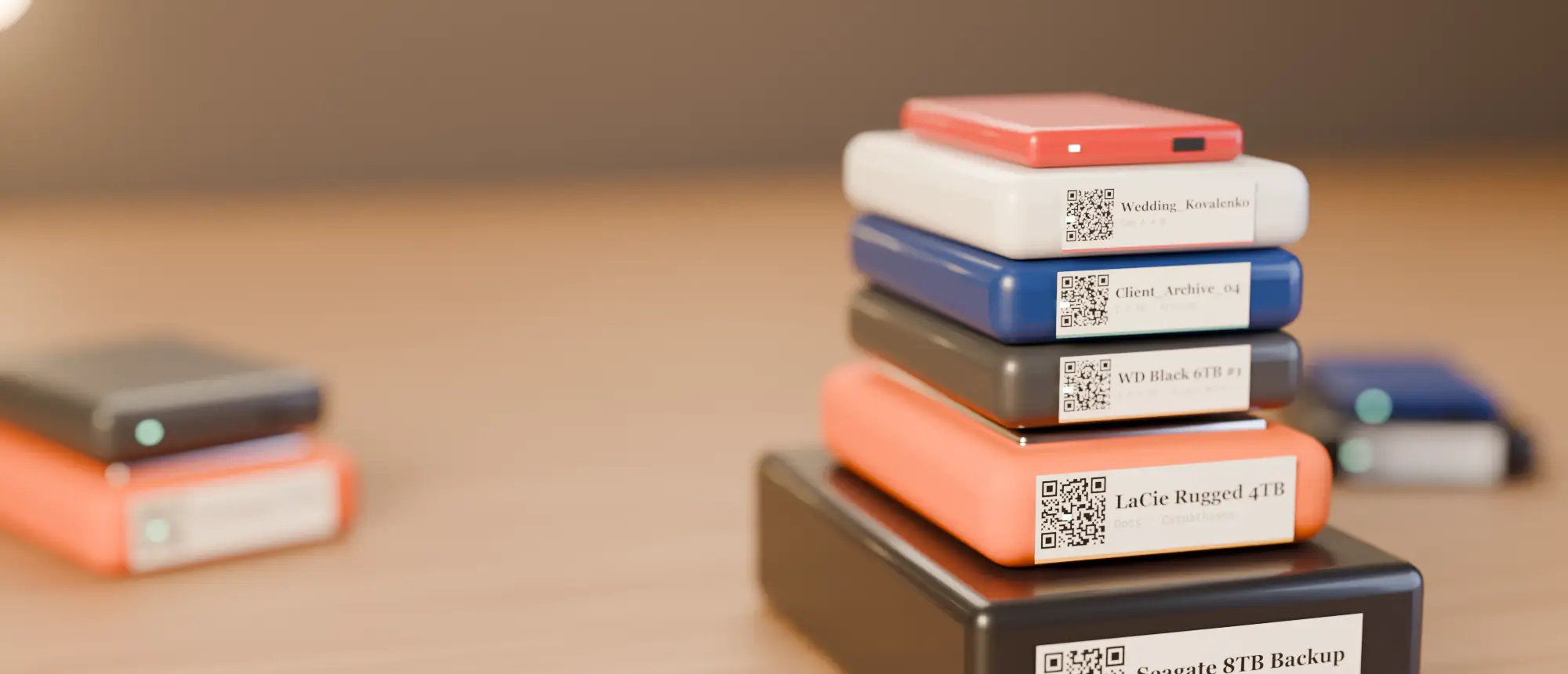
where's my
 Heads-up: links to the Phomemo and NIIMBOT stores on this page are affiliate links. If you buy through them we may earn a small commission, at no extra cost to you. We only recommend printers we would use for drive labels ourselves.
Why the M110 fits
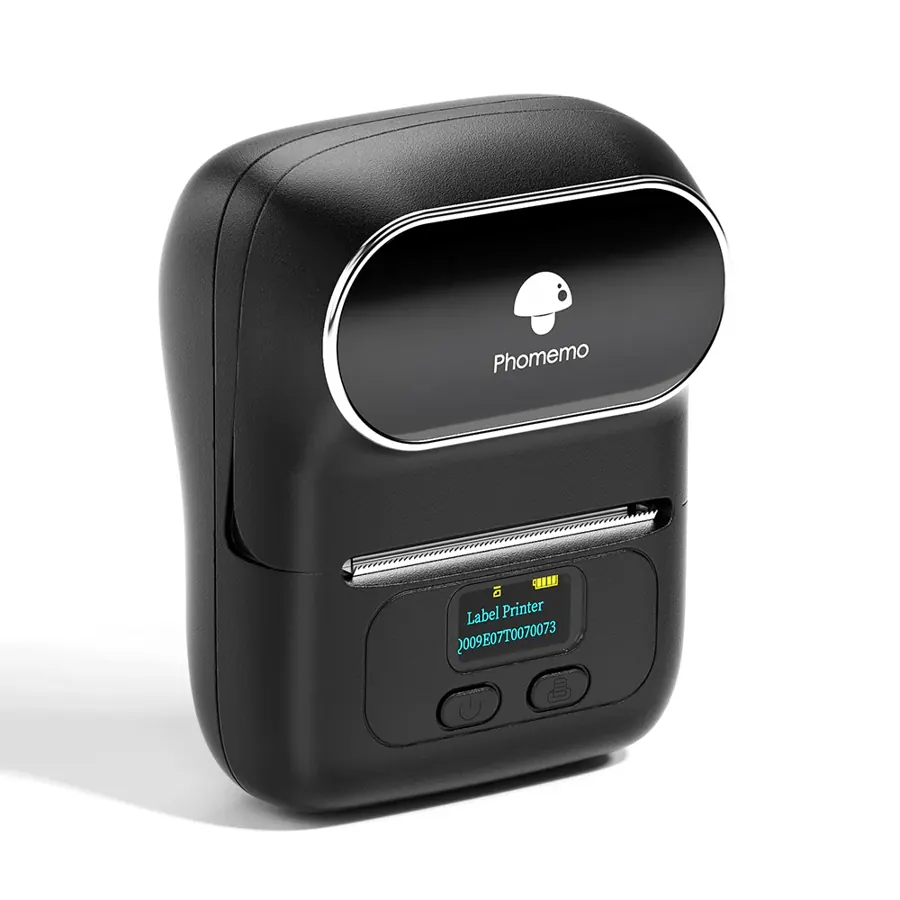
A 2.5-inch drive has an 80×110 mm top face; a 50×30 mm label sits on it with room to spare. The Phomemo M110 prints labels 20–50 mm wide at 203 dpi, runs 3–4 hours on its 1200 mAh battery and prints from a phone, tablet or — with the cable — a computer.
What to buy
- The Phomemo M110 (or the Phomemo M20 Pro for 300 dpi and a screen).
- 50×30 mm labels — our default sticker size.
- 40×30 mm labels for pocket SSDs.
Printing a Where’s My Drive label
Export the drive’s 50×30 label as a PNG from the app and place it full-size on a 50×30 label in the Phomemo app. The QR, name and note are already laid out at 300 dpi; the printer scales it to its head.
Leave the white margin around the QR code intact — cropping it to the label edge is the number-one reason a code will not scan.
Settings and placement
- Set density one step darker than default — solid black modules scan best.
- Stick the label on the top face, away from vents and rubber feet.
- Scan the first label from 30 cm before printing the rest.
Catalog your first drive tonight
14-day free trial, no card. Scan a drive in Chrome or Edge, print its QR sticker, and find any file on it from your phone.
Frequently asked questions
What labels does the Phomemo M110 use?
Die-cut thermal labels 20–50 mm wide; for drives we use 50×30 mm (40×30 mm for small SSDs).
Does the M110 work with a computer?
Yes — over a USB cable, and with phones and tablets over Bluetooth.